
Note: If you have a temporary password, you will be prompted to create a new one within your company's security standards.
2. Go to the Start Menu and type in 'Control Panel' then open the application
3. Click on Mail
Note: If your Control Panel does not look like the above, you can use the View by option to change the icons from Category to one of the other 2 options. It is also okay if your Mail option is not identical, the next steps do not change.
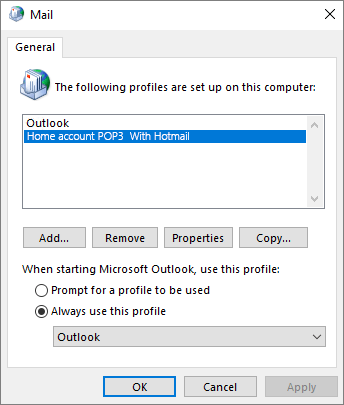
4. Click on Show Profiles in the Mail Setup window.
Add a new profile and name it whatever you would like.
5. Enter the information requested at this screen and hit Next.
Note: You may see an additional pop-up asking you to sign into your account again, you will need to sign into this.
6. Once you've signed into both of the above prompts, you should see this:
7. Once this is finished, you will need to change the dropdown menu in the Mail window to the new profile created in step 5 then hit OK.
8. You should now be able to open Outlook and it should open with the correct profile and credentials.
If you need further assistance, please call us at 844.611.6110 and choose option 3 to reach an available technician!