You will need to go to the App Store (for iOS) or the Google Play Store (for Android) to install the Outlook app.

Note: It will specifically be labeled Microsoft Outlook and the icon is below.
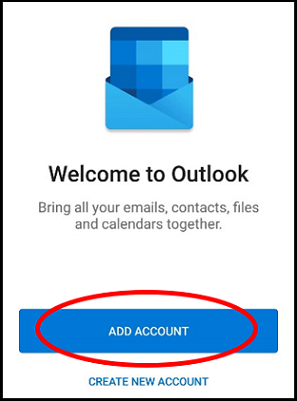
2. Add your account to the app using the Add Account button when it starts up.
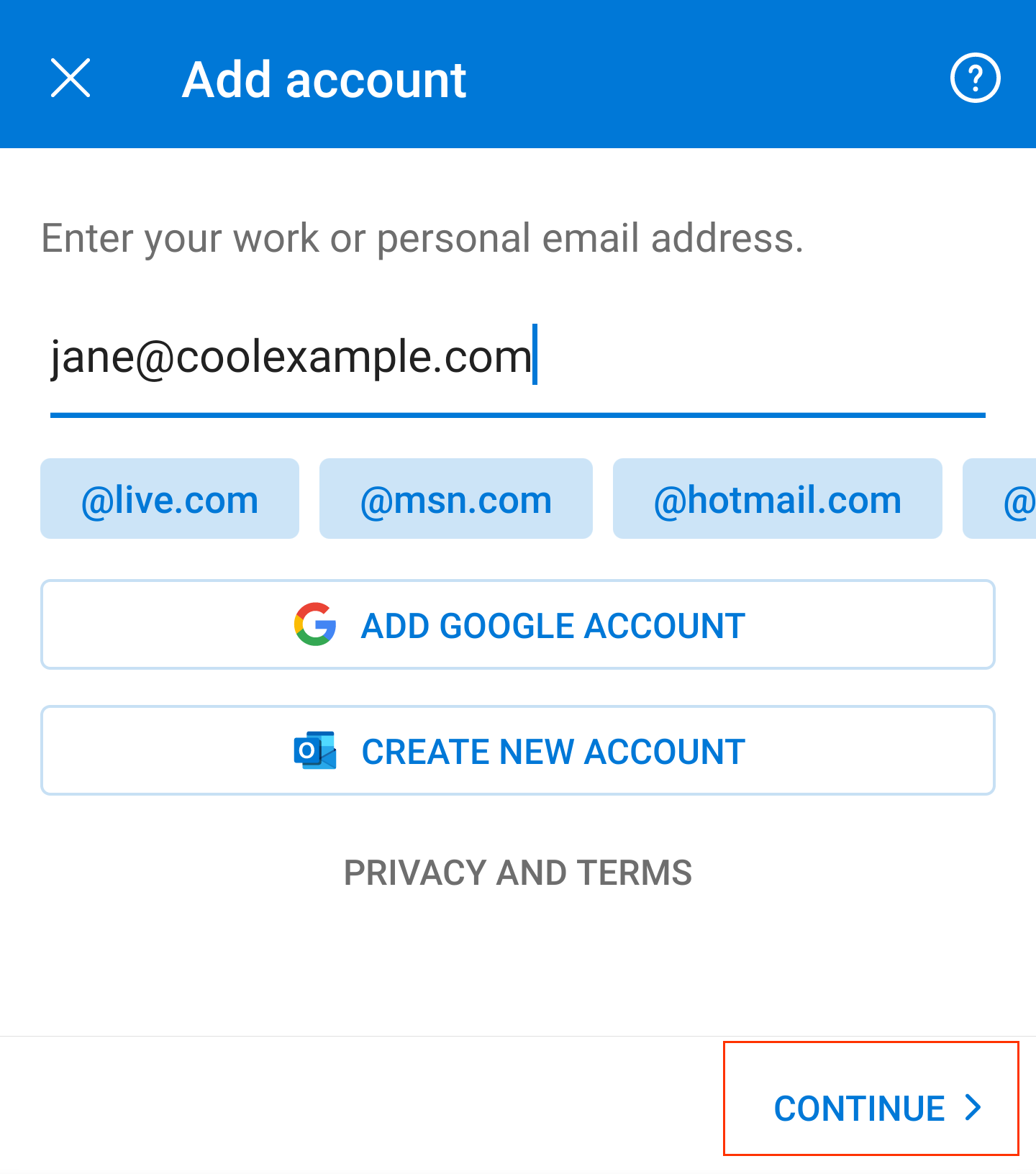
3. You will be prompted to add your email address in a text field at the top of the app
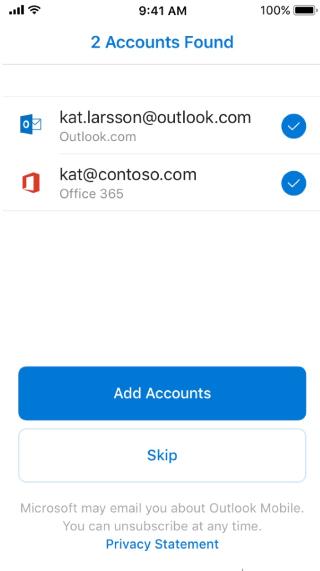
Note: It may have already detected your email address if you have it signed into other apps on the device, if this is the case, you should be able to proceed by selecting which accounts you want it to manage and tapping on Continue - you may skip the next step if you are not prompted for your password from this.
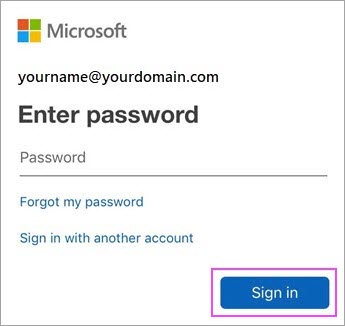
4. You will be prompted to enter your password for your email. It should be the same password that you use to sign into your computer or email on your computer, if you have one.
Note: Once you sign in, you will be asked if you'd like to add another account, select the Maybe Later option at the bottom left if you do not have another account to add.
If you need further assistance, please call us at 844.611.6110 and choose option 3 for support!